
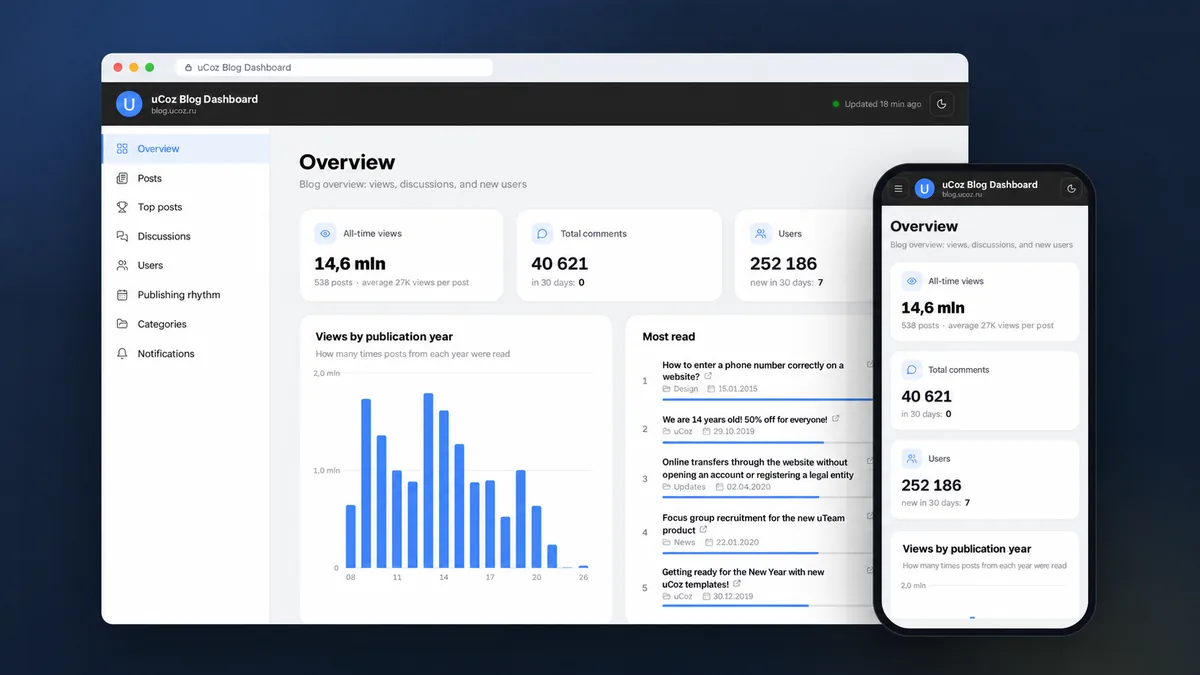
Case study: how to build an analytics dashboard for your uCoz blog, with the numbers the Control Panel doesn't show. An AI agent built all of it from chat messages, using uCoz MCP, Server Scripts and uAPI.
Every post in a uCoz blog has a view counter and comments. But there is no big picture. Which posts are read the most, which old ones still bring people in, where readers ask questions and whether they got an answer, who signs up and whether they come back later. To find out, you would have to open posts one by one.
You can build this kind of screen yourself. uAPI provides the blog's data. Server Scripts runs your own server-side code: it fetches fresh data on its own, keeps the history in a MySQL database and shows everything on a separate page. You don't need to write this code, it's enough to explain to the AI agent what you want to see.
In this case study, we show how to build a dashboard for your blog with 7 prompts, using the official uCoz blog as an example. It has an overview, top posts, discussions, users, categories, a card for every post and Telegram notifications. The blog itself didn't change: the dashboard only reads its data. The prompts are below in order. You can copy them and send them to your agent, replacing the addresses with your own.

What's inside the dashboard


1. Getting ready
You will need:
- A blog on uCoz. This is where the dashboard gets its data. It only reads the blog: posts, templates and settings stay as they were.
- A uCoz site with the Server Scripts service. It runs your own server-side code in PHP, Node.js or Python, with a MySQL database and scheduled jobs. This is where the dashboard will live. We used a separate site for it so the blog wasn't touched at all. The service is turned on in the Control Panel: the agent will check whether it's connected, but it can't turn it on for you.
- An AI agent you give tasks to in a chat. We used Claude Code.
- uCoz MCP. Through it, the agent creates the dashboard files on the site, the database and the scheduled jobs.
- A read-only uAPI key for the blog. The dashboard uses it to fetch posts, comments and users. This key can't change anything in the blog. It's stored on the server and never shown on pages.
How to connect the agent to your site is explained on the uCoz MCP page.
The agent will also need the uCoz Server Scripts Skill. It contains rules and proven solutions for this service: where to keep keys, when to make backups, how to check the result on the live site.
uCoz Server Scripts Skill
Skill for running your own code on a uCoz site via MCP: PHP, Node.js and Python apps, MySQL databases and scheduled cron jobs.
2. The idea: what to show the admin
We didn't start with code. First, the agent had to figure out what blog data is available at all and what of it would be useful to the person running the blog.
Prompt 1. Work out what to show the admin
I have a blog on uCoz: https://your-blog.ucoz.com. It has lots of posts, comments and users. But as the admin, I know almost nothing about it: what people are reading right now, which old posts still bring in views, where readers argue and wait for an answer, who signs up and whether they come back later.

Find out what blog data you can get through uAPI:
— posts: title, category, date, views, number of comments;
— comments: text, author, date, replies to them and who replied;
— users: sign-up date, group, last visit, avatar;
— categories and how many posts each has.
Make a few test requests with a read-only key and see what actually comes back, not only what the documentation says.

Suggest a dashboard for the admin: which sections, which numbers and charts in each, and which of my questions each block answers.
Separately, tell me what uAPI doesn't give directly, for example views for yesterday or for the week, and how to calculate it anyway.
Estimate how often we can fetch data without putting load on the blog.

Only a plan for now. Don't create anything and don't touch the blog.
The agent worked out what the blog provides and suggested sections: an overview, a list of posts, top posts, discussions, users, publishing rhythm and categories.
One detail shaped the dashboard right away. The blog knows how many times a post has been read in total, but not how many of those views happened yesterday. So the dashboard records the views of every post once an hour on its own, and the numbers for the day and the week start adding up from launch day.
3. The foundation: data and overview
The main rule of the project: don't touch the blog. So the dashboard was built on a separate site, and the blog was only read from.
Prompt 2. Build the foundation: data and overview
We're building a "uCoz Blog Dashboard" on my separate site https://your-dashboard.ucoz.net, which has Server Scripts connected. Follow the uCoz Server Scripts Skill.

The main rule: the blog https://your-blog.ucoz.com is read-only for us. No changes to the blog's templates, posts or settings. We get data through uAPI with a read-only key. Keep the key on the server, it must not be in the page code.

Data collector:
— create a MySQL database and a scheduled job that runs every 10 minutes;
— on the first run, load all posts, categories and the full comment history, then pull in only what's new;
— once an hour, save a snapshot of every post's views: the difference between snapshots gives views for the day, week and month;
— keep the latest user sign-ups updated too;
— if uAPI doesn't respond, don't overwrite the old data, just try again next time.

First screen, "Overview":
— all-time views, comments and users, with long numbers shortened: "14.6M";
— a chart of views by publication year: posts from which year are read the most;
— the most-read posts of all time with a link to the blog;
— show the 24-hour change only once snapshots cover a full day, and until then say which day the count starts from.

Access: only the admins of my site can open the dashboard, through the regular uCoz login, without a separate password. Don't store readers' e-mails, IPs or phone numbers at all.
Check everything in the browser and send me the link.
The agent created the database and set up the collector: a job that runs on its own every 10 minutes. On the first run, it loaded the posts, categories and the full comment history, and after that it takes only what's new. Once an hour, the collector records the views of every post, and these snapshots give the numbers for the day and the week.
The first screen was the overview, shown in Fig. 1. Only a site admin can open the dashboard after the regular uCoz login. The dashboard stores only the account data needed for these reports and does not store users' email addresses, IP addresses or phone numbers. Nothing changed in the blog the whole time.
4. A uCoz look
The data was coming in, and now the dashboard needed a look of its own. We wanted it to feel like part of uCoz, not someone else's admin panel.
Prompt 3. Design it like the uCoz Control Panel
I want the dashboard to look like a native part of uCoz, not a third-party admin panel.
Use the uCoz Control Panel as the model:
— a dark header with the uCoz logo and the name "uCoz Blog Dashboard", with a light/dark theme switch on the right;
— a white menu on the left with section icons, the active section highlighted. At the bottom of the menu, the avatar or initials of the logged-in admin, their name and a "Log out" button;
— a light gray background and white cards with rounded corners and a soft shadow;
— the brand blue for buttons, links and charts, no garish colors;
— a compact font, like in the Control Panel. Large numbers only in the main cards;
— icons from a ready-made set with the same line weight, don't draw your own. Small gray icons for the category, date and comment count in lists;
— smooth line charts with the exact value shown on hover. Bars only where separate values are compared.
Design the dark theme separately, don't just invert the colors, and remember the choice.
On a phone, the menu hides behind a button, cards stack in one column, tables don't overflow the screen.
Take screenshots of the sections in both themes and on a phone and show them to me.
The agent brought the colors and feel of the uCoz Control Panel into the dashboard: a dark header with the logo, a light menu on the left, blue accents, white cards, neat icons. The bottom of the menu shows who is logged in and has a "Log out" button. The theme switches with one button in the header.

5. Sections: what people read, where they argue, who comes
Next, the dashboard grew sections. Each answers its own question from the admin, so that's how they are described in the prompt too.
Prompt 4. Add sections
Add sections to the dashboard. Each one answers its own question.

"Top posts" — what people read:
— the most-read posts of all time;
— growth for the day, week and month, once the history builds up;
— trending: posts that are gaining faster than usual right now;
— evergreen: old posts that are still read steadily;
— declining: used to be read well, now hardly at all.

"Discussions" — where people argue and whether readers get answers:
— posts with the hottest discussions;
— the most active commenters and when each of them last wrote;
— what share of discussions got a reply from the blog team and how long a reply usually takes;
— the latest comments and the moderation queue.

"Users" — who comes:
— how many users there are in total and how many are new this month;
— the latest sign-ups with avatar, group and last visit date;
— what share of newcomers came back after signing up and what share uploaded an avatar;
— a chart of sign-ups by month for all time.

"Publishing rhythm" — a heat map of weekdays and hours, how many posts came out in the year and the usual gap between them.

"Categories" — average views per post for each category and a table: how many posts, how many views, when the latest one came out.

For users, store only what the screens need. Check each section in the browser on the blog's real data.
The agent built five sections:
- Top posts shows not only the most-read posts but also movement: what's gaining now, which old posts have been read for years and which have declined.
- Discussions shows where readers argue, who comments most and how quickly they get a reply.
- Users: fresh sign-ups with avatars and a chart by month. The two most useful numbers here: what share of newcomers came back after signing up and what share uploaded an avatar.
- Publishing rhythm: on which days and at what hours posts come out, and how often.
- Categories: which topics are read better and where nothing has come out for a long time.


6. A card for every post
The sections answer questions about the blog as a whole. The next step: being able to see in a second how any single post is doing.
Prompt 5. Add a post list and a post card
Make a "Posts" section: all blog posts with search by title, a category filter and sorting by date, views and comments. The list must scroll quickly on a phone too.

And a post card. Clicking any post in the list, top posts, overview or discussions opens its page in the dashboard.
What the card shows:
— title, category and publication date;
— how many views the post has, its rank in the whole blog and in its category, how many times better or worse it is than the category average;
— a chart with all posts of the category lined up by views, this one highlighted in color;
— view growth for the day and the week, once the history builds up;
— comments by month over the post's whole life;
— whether the blog team replied to readers, how quickly, and how many questions are still unanswered;
— the latest comments with dates;
— "Open in blog" and "Edit" buttons, both leading to the blog itself.
The "Back" button returns to where you came from.
The Posts section now holds all blog posts: you can find them by title, filter by category and sort them.

And clicking any post opens its card. It has:
- views and the post's rank in the whole blog and within its category;
- a comparison chart: all posts of the category in descending order of views, this one highlighted, so you see at once where it stands;
- comments by month, starting from the very first one;
- blog team replies: how many discussions got a reply and how many are still waiting;
- the latest comments and the "Open in blog" and "Edit" buttons.

7. Telegram notifications
The dashboard is handy to open in the morning. But you want to hear about a new comment or a sudden interest in an old post right away, in Telegram.
Prompt 6. Connect Telegram notifications
I want to hear about events in the blog without opening the dashboard, through a Telegram bot. Make a "Notifications" section.

Which notifications I need:
— a new comment: text, author, post title and a link straight to the discussion;
— a post suddenly takes off: "+N views in an hour", when that's noticeably more than its usual hour. Pick the threshold so the bot doesn't spam;
— a new user signed up;
— every morning at 9:00 my time, a short summary of the past day.
If many events pile up at once, combine them into one message.

Connection right in the dashboard, without editing code: I paste the token from @BotFather and the bot's name, press "Connect", the dashboard gives me a link, I press Start in Telegram, and the chat is linked.
Never show the token and don't keep it in the page code. Only an admin can change the bot settings.
Don't send old events on connection, only new ones.

In the section: a switch for each type of notification, "Send test" and "Send report" buttons (the report is a nice summary of the blog's statistics), a history of sent notifications with a clear button, and a button to disable the bot.
When everything is set up, send me a test message.
The agent added the Notifications section. Connecting takes no code: you create a bot with @BotFather in Telegram, copy its token (the bot's secret key) and paste it into the dashboard. The token stays on the server and isn't shown anywhere else.
Then the dashboard gives you a one-time link. You open it in Telegram, press Start, and the chat is connected. What to send is chosen with switches: new comments, view spikes, new users and the morning digest. A spike is an hour in which a post got several times more views than usual.


8. Checking the result
Here is what the blog admin sees now:
| What you want to know | Where it is in the dashboard |
|---|---|
| What people read | Top posts: the most-read posts of all time, growth, trending, evergreen and declining posts |
| How a specific post is doing | Post card: rank in the blog and in the category, comparison with its neighbors, comments by month |
| Where people discuss | Discussions: the hottest posts of the year, the most active commenters, the moderation queue |
| Whether readers get answers | The Team replies block: the share of discussions with a reply and the usual reply time |
| Who comes | Users: new sign-ups with avatars, a chart by month, who came back after signing up |
| When and what to write about | Publishing rhythm and Categories: days and hours when posts come out, topics with nothing new for a long time |
| What's happening right now | Telegram: a new comment, a view spike, a new user, the morning digest |
- Data updates on its own every 10 minutes, post views are recorded once an hour.
- The blog hasn't changed: templates untouched, the access key is read-only.
- Users' e-mails, IP addresses and phone numbers aren't stored.
- Only site admins can see the dashboard, after logging in.
The dashboard has been checked on a phone too. The menu hides behind a button, the number cards stack on top of each other, charts and lists fit the screen width.
You can check how any post is doing at any moment, without opening a computer. And if something happens in the blog, Telegram will tell you.
One limitation: view growth for the day, week and month is counted from the dashboard's launch day. The longer it runs, the more accurate these numbers get.

9. The finished dashboard
Now the blog admin has one place that shows what people read, where they discuss, whether readers get answers and who comes to the blog. The data updates on its own, and Telegram reports anything important.
All the work happened in a chat in about one working day. Tasks were set in plain words, and the agent built, checked on real data and showed the result.
Prompt 7. Accept the result
Do a final check of the dashboard before I show it to the team:
— go through all sections and several post cards on a computer and a phone, in the light and dark theme. Nothing should overlap or overflow the screen;
— make sure the scheduled job has run several times in a row without errors and the data is fresh;
— check that the blog hasn't changed once in all this time: templates, posts, settings;
— compare a few dashboard numbers with what the blog itself shows;
— send a test notification and a statistics report to my Telegram;
— check that the dashboard doesn't open without an admin login, and that the key and token aren't visible in the page code;
— remove temporary files and test access, if any are left.
At the end, write briefly: what was done, where everything is, what runs on its own on a schedule and what I need to do myself.
If you have a blog, news or an article catalog on uCoz, you can build the same dashboard too. Connect the agent, install the skill and send the prompts from this case study one by one, replacing the addresses with your own. Adjust the sections to suit you: ask the agent to add what you need and remove what you don't.
Other things the Control Panel can't do are built the same way: smart search with suggestions, a Telegram bot based on site content, a newsletter about new posts.
Start your own project: uCoz MCP and the uCoz Server Scripts Skill.
Was this case helpful?
Your vote is saved in this browser only.
Article author