
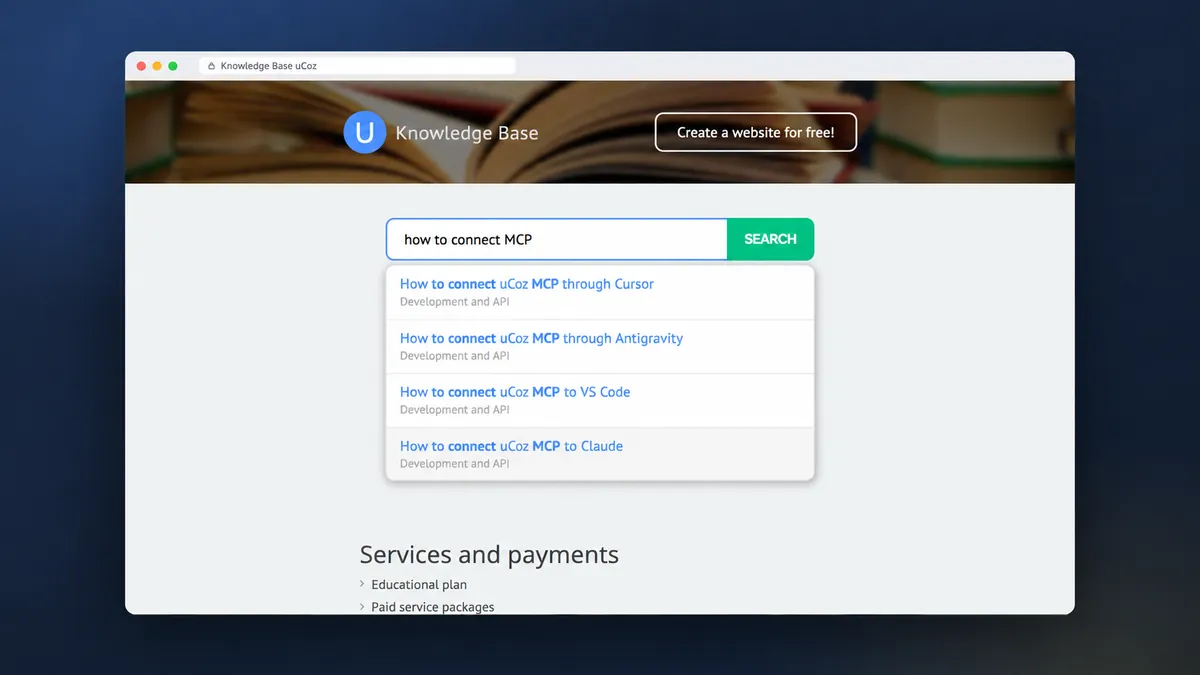
Case study: from a regular site search to a smart one that suggests articles while the visitor is typing. An AI agent did all of it from chat messages, using uCoz MCP and Server Scripts.
Every uCoz site has a standard search: type a word, press the button, get a results page. For a small site, that is enough. When there are hundreds of articles, you want more. For example, the way it works on large portals: the person is still typing the question, and the right articles are already showing under the field. And the search should not get lost if a word has a typo or the text was typed in the wrong keyboard layout.
There is no ready-made setting for this in the Control Panel. But there is Server Scripts: a service that runs your own server-side code in PHP, Node.js or Python on uCoz hosting. It gets the site's articles through uAPI. All that's left is to explain to the AI agent what you need, and it builds the search itself.
In this case study, we show how to build this kind of search for your site with 8 prompts, using the uCoz knowledge base as an example. The prompts are below in order. You can copy them and send them to your agent, replacing the site address with your own.

1. Getting ready
You will need:
- A uCoz site with articles and access to its Control Panel.
- The Server Scripts service. The search will run on it. It is enabled in the Control Panel. The agent will check whether the service is enabled, but it can't enable it for you.
- An AI agent you chat with. We used Claude Code.
- uCoz MCP. Through it, the agent sees the site and makes changes when you allow it.
- A uAPI key that can only read articles. The search uses it to fetch new articles on its own. This key can't change anything on the site.
How to connect the agent to your site is explained on the uCoz MCP page.
Prompt 1. Connect the site and look around
Connect to my site https://your-site.ucoz.ru via uCoz MCP.
Look at what's on it:
— which modules are enabled and how many entries they have;
— where the articles visitors search for most are, and how they are split into sections;
— how search works now: which template has the search field and where it sends the query;
— whether Server Scripts is enabled and whether you can access it via MCP.
Don't change anything yet, just look.
Tell me in plain words what you found and what's missing to build smart search on the site.
Put in your own site's address. At this step, the agent doesn't touch anything, it only looks. If Server Scripts isn't enabled, it will tell you right away.
2. Installing the skill
MCP gives the agent access to the site. The skill explains how to use that access: it collects rules and proven solutions for Server Scripts. For example, make a backup before making changes, check the result on the live site, and keep keys only on the server.
uCoz Server Scripts Skill
Skill for running your own code on a uCoz site via MCP: PHP, Node.js and Python apps, MySQL databases and scheduled cron jobs.
Prompt 2. Install the skill
Install the official uCoz Server Scripts Skill: https://www.ucoz.com/ai/skills/ucoz-server-scripts-skill
Read it in full and follow its rules for the whole project:
— before any change, make a backup of what you're changing;
— keep keys and passwords only on the server, never show them in page code or in your replies to me;
— after each step, check the result on the live site, not just in the code.
Before changing anything on the live site, ask me and explain what exactly will change.
If something doesn't work, find the cause first and tell me; don't quietly work around the problem.
Once it's installed, briefly sum up which rules from the skill will be useful for the search.
The skill paid off in the first few minutes. Access to Server Scripts didn't work at first. The agent found the cause and suggested what to fix, and after that the work went smoothly.
3. Smart search plan
Before building anything, we asked the agent to look at the site and propose how to set everything up.
Prompt 3. Propose a plan
Look at how search works on my site now and suggest how to make it smart.
What I want:
— suggestions under the field while the visitor is typing, without going to a separate page;
— search by title, section and the full text of articles;
— handling of typos and text typed in the wrong keyboard layout;
— the most relevant articles on top, with matches highlighted;
— new articles get into the search on their own.
Suggest how to do this with Server Scripts and uAPI: where the search will live, where it will get the articles, how often it will update them, and what will need to change on the site itself.
Explain in plain words, without code. Don't change anything yet.
The agent proposed this plan. The search will live in Server Scripts. Through uAPI, it reads all the site's articles in advance and puts them into its own index, like a book's table of contents. That way it doesn't need to contact the site for every letter typed, and the answer comes almost instantly.
Once an hour, the search re-reads the articles on its own, so new ones show up in suggestions without any action on your part. On the site, one line in the template changes: the search field starts getting suggestions from the new search.
4. Building it separately from the site
Until the search is ready, visitors shouldn't notice anything. So it was built separately, and the site was left untouched until launch.
Prompt 4. Build the search
Build smart article search for my site in Server Scripts.
How it should work:
— the visitor starts typing, and suggestions appear under the field right away: matching articles, with matches highlighted;
— search the title, keywords, section and the full text of the article. A match in the title matters more than one in the text;
— each suggestion shows the article title and section, so it's clear where the link leads;
— put the articles into your own index in advance, so the answer comes almost instantly and you don't have to contact the site for every letter.
New and changed articles should get into the search on their own, on a schedule, once an hour.
While the index is updating, visitors use the previous version. If an update fails, the old version keeps working.
Build everything separately from the site. Don't touch the live site and templates until I confirm.
I'll send a read-only uAPI key for articles separately; keep it only on the server.
The agent built the search in Server Scripts. It searches the article title, keywords, section and full text, and puts the most relevant articles on top.
Updates are handled carefully. While the search re-reads the articles, visitors use the previous version. If something goes wrong, that version simply stays in place.
5. Testing before launch
Before showing the search to visitors, we tested it from every angle.
Prompt 5. Test before launch
Test the search before connecting it to the site.
First, run automated checks on the site's real articles: every article must be found by its title, and links from the suggestions must open.
Then make a test page that looks like my site and try the search in the browser:
— regular queries on the site's topics;
— queries with typos and in the wrong keyboard layout;
— empty input, only spaces, very long text, quotes and special characters;
— fast typing and deleting: suggestions must match what is typed in the end, not the input in between.
The test page must not be visible to site visitors.
Fix everything you find yourself and list for me what was wrong.
Even before that, the agent ran automated checks on the site's real articles and found three bugs. They were fixed before the search reached the server.
Then it built a test page with the same design as the site and put the search through its paces in the browser. Suggestions hold up under fast typing and deleting: the list always shows articles for what is typed right now.
6. Launching on the site
Once everything was tested, all that was left was to connect the search to the site.
Prompt 6. Connect it on the site
All good, connect the new search on the site.
Before editing, save a backup of the template and tell me where it is and how to put everything back the way it was.
Change only what's needed for suggestions. Leave the search field itself and its look as they are.
After connecting, check in the browser on several pages of the site:
— suggestions come from the new search;
— nothing broke on pages without a search field;
— there are no errors in the browser console.
Then wait for the first automatic article update and check that it ran on its own.
The launch came down to one edit in the template. Suggestions appeared for all visitors right away, and the previous version stayed in the backup, so it can be restored in one step. A bit later, the search updated itself for the first time, without the agent or the site owner.
7. Typos, keyboard layout and synonyms
Suggestions were working. Now we wanted the search to understand sloppy queries too: people type on the go, make mistakes and call things by their own names.
Prompt 7. Make the search smarter
Suggestions work. Now teach the search to understand imprecise queries:
— typos: “backup capy” should find “backup copy”. Take the correct words from the text of my own articles, not from a general dictionary;
— text typed in the wrong keyboard layout: “ajhev” is “forum”, “ljvty” is “domain” (Russian words typed with the English layout);
— different word forms: “connect” finds “Connecting”, “forums” finds “Forum”;
— synonyms and slang: “backup” means backup copy, “ssl” means SSL, “ushop” means online store. Show me the synonym list, I'll add to it;
— popularity: among similar results, show the most-read articles first. Take each article's view count from uAPI along with the text and refresh it on every index update.
If a query was corrected, show a line “Results shown for query…” above the suggestions, so the person sees they were understood.
Don't correct what's already found: if the query as typed has results, don't replace it.
Rank a title match above a text match.
Update the search so it doesn't stop working for even a minute, and rerun all the checks from the previous step.
Now the search understands:
- Wrong keyboard layout: “ajhev” turns into “forum”, “ljvty” into “domain”.
- Typos: “frum”, “dommain”, “sertificate”, “backup capy”. The search takes the correct spellings from the words in your own articles.
- Word forms: “connect” finds “Connecting”, “forums” finds “Forum”.
- Synonyms: “backup” means backup copy, “ushop” means online store, “ssl” means SSL.
- Popularity: among similar articles, the most-read come first. The search uses each article's view count, which it gets from uAPI along with the text.
- Order: a title match ranks above a match in the text.
When the search corrects a query, the line “Results shown for query…” appears above the suggestions. That way the person sees right away that they were understood. The update was rolled out without downtime, and the search kept answering the whole time.


Prompt for checking on a phone
Check how the search looks on a phone and a tablet:
— the suggestion list fits the screen and matches the width of the search field, with no horizontal scrolling;
— suggestion text is no smaller than on the site, and each suggestion is easy to tap with a finger;
— rotating the screen and resizing the window don't break the list;
— on desktop, everything stays as it was.
Check on a small phone, a tablet and a desktop, and send me screenshots.
The suggestion list adjusts to the width of the search field, so it doesn't overflow the screen on a phone.
The agent checked this on a small phone, a tablet and a desktop.
On a phone, suggestions are just as smart: with typo correction and highlighted matches.

8. The result
| What the search can do | What it looks like |
|---|---|
| Suggestions while typing | Appear in under a second, with matches highlighted |
| Where it searches | In the title, section and full text of the article |
| Typos | “backup capy” finds “backup copy” |
| Wrong keyboard layout | “ajhev” finds “forum” |
| Word forms and synonyms | “connect” finds “Connecting”, “backup” finds backup copy |
| Popular first | Among similar articles, the most-read come first, by view count |
| New articles | Get into the search on their own, once an hour |
| Phone | The suggestion list fits the screen |
- The search covers all 731 published articles in the knowledge base.
- Links from the suggestions were checked, and all of them open.
- The first automatic update ran on its own and took about 15 seconds.
One limitation: if the typo is in the first letter of a word, the search can't correct it yet.
9. The finished search
The knowledge base got a search that suggests articles as you type and forgives mistakes. The whole time, the site owner wrote to the agent in plain words and decided when to move on. The agent checked every step and asked for permission before touching the live site.
Prompt 8. Accept the result
Run a final check of the search and prepare a short report:
— suggestions on desktop and on a phone;
— queries with typos, in the wrong keyboard layout and with synonyms;
— all links from the suggestions open, and none lead to a deleted article;
— the automatic update runs on its own, and new articles get into the search;
— the uAPI key isn't visible in page code, and the template backup is in place.
In the report, write in plain words: what was done, where everything is, and how to bring back the old search if needed.
Separately, list the limitations and what I need to do myself.
If your site has articles, instructions or FAQ answers, you can build the same search too. Connect the agent, install the skill and send the prompts from this case study one by one, replacing the site address with your own.
Other things the Control Panel can't do are built the same way: a Telegram bot based on site content, a list of the most-read posts, a newsletter about new articles.
Start your own project: uCoz MCP and the uCoz Server Scripts Skill.
Was this case helpful?
Your vote is saved in this browser only.
Article author